[an error occurred while processing this directive]
Benefits of adding comments to a PDF file:
- You are able to review a document and add various types of comments to it in an organized, clear fashion for review.
- Types of comments include Notes, Text Edit Indicator, Stamps, Highlighting
The Commenting Toolbar
- Open the file in which you want to add comments, and navigate to the page to which you
want to add comments.
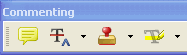
- If you don't see the Comment & Markup toolbar, you may need to open it by right-clicking on the main toolbar at the top
of the page, and selecting Comment & Markup. The Comment & Markup toolbar looks like this:
The Sticky Note Tool
The  icon on the Comment & Markup toolbar is the Sticky Note Tool,
which enables you to add notes to any page of a PDF file, positioned anywhere you choose.
icon on the Comment & Markup toolbar is the Sticky Note Tool,
which enables you to add notes to any page of a PDF file, positioned anywhere you choose.
- To use the Sticky Note Tool, select the Sticky Note Tool, then click the location where you want to place the note and
enter text in the pop-up window that appears. When you are finished entering your note, click the small X in the upper
right corner of the note:
- To edit a note, just click on the yellow comment indicator of the note you want to edit.
- To delete a note, right-click on the yellow comment indicator and select Delete.
The Text Edit Indicator
The  icon on the Comment & Markup toolbar represents Text Edits,
which enables you to add different types of text edit indications to any page of a PDF file, including strikethrough, underline, and highlight.
icon on the Comment & Markup toolbar represents Text Edits,
which enables you to add different types of text edit indications to any page of a PDF file, including strikethrough, underline, and highlight.
- To use Text Edits, select the text you want to comment upon, and select an indicator style by opening
the dropdown menu just to the right of the icon:
- The only way to edit a text edit indicator is to delete the original one. To do this, right-click on the
text in question and select Delete.
The Stamp Tool
The  icon on the Comment & Markup toolbar is the Stamp Tool,
which enables you to add different types of stamps to the document, such as Approved, Sign Here, and Confidential.
icon on the Comment & Markup toolbar is the Stamp Tool,
which enables you to add different types of stamps to the document, such as Approved, Sign Here, and Confidential.
- To use the Stamp Tool, open the pull-down menu just to the right of the Stamp icon to view the array of existing stamps.
- Click on the location of the document in which you want the stamp to appear.
- To delete a stamp, right-click on the stamp and select Delete.
The Highlight, Underline, and Cross-Out Tools
The  icons on the Comment & Markup toolbar are the Highlight, Underline, and Cross-Out tools, respectively, which each operate in a similar manner as the Text Edits tool. These tools, however, act as if you are holding a marker, giving you greater control over the tool.
- To use the tools, click on the tool icon you want to use and select the text you want to highlight, underline, or cross-out.
- If you do not see any or all of these tools, simply right-click on the Comment & Markup toolbar and select them from the list that appears.
Related Resources
[an error occurred while processing this directive]